To manage Amazon Subscribe & Save, open Your Subscribe & Save Items, choose the Subscriptions tab, then select the product you need to change. Start with the item and the next delivery you actually want. Before canceling, check the account's Last day to update this order date: a subscription change and an order already in shipping need different attention.
This guide covers Amazon's US public help instructions. The decision guide below helps you prepare a route; it cannot read your account, change a subscription, cancel an order, or confirm a refund. Use the current information shown by Amazon for your item.
Choose the change before opening the product
A cupboard with three spare detergent bottles calls for a different decision from a product you never want delivered again. Write down the product, the next delivery date shown in your account, and what you want to happen. You may want fewer units, a different interval, a later delivery, or an end to the subscription. Keeping that aim visible prevents a quick account check from turning into another shopping session.
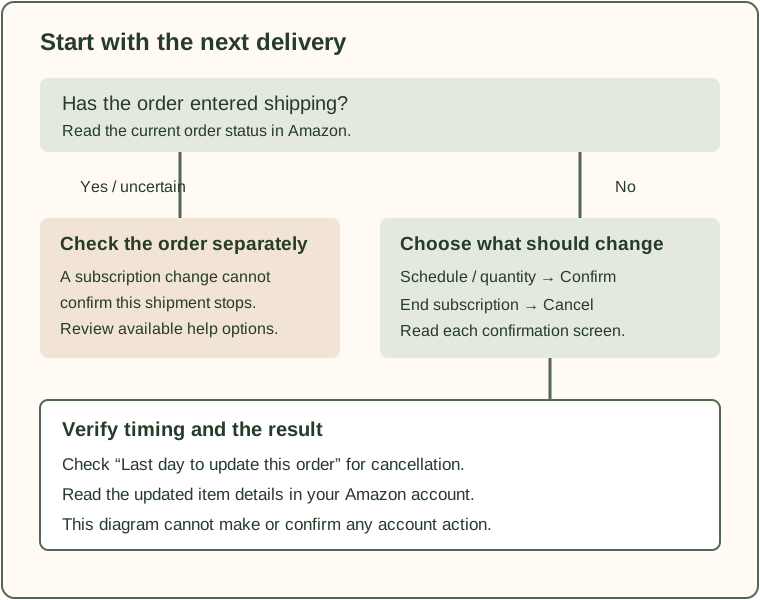
Our decision guide asks about the action, the update deadline, and whether shipping has begun. Its result is a preparation note, not an account status. If either timing detail is unknown, it asks you to check Amazon before treating the next delivery as changed. It does not calculate eligibility or use an assumed number of days before dispatch.
For a broader review of whether repeat orders still fit your household, use our diaper and wipe subscription check. That is a purchasing review; the steps here concern managing an existing Amazon subscription.
Change the delivery schedule or quantity
Amazon's delivery-schedule help page describes this route:
- Open Your Subscribe & Save Items from Your Account.
- In Subscriptions, select the item you want to change.
- Select Change your schedule or quantity.
- Change the frequency, next delivery date, or item quantity as needed.
- Select Confirm.
Amazon states that the subscription change takes effect on the next delivery. Read the resulting details in your account before closing the page. A note you typed into our tool does not establish that Amazon accepted anything. If the screen still shows the original quantity or date, treat the change as unconfirmed.
Consider one hypothetical household: two sealed bottles remain, and the next delivery would add two more. The household could review the quantity or next delivery date instead of ordering extra storage. This example suggests what to examine; it does not promise which dates or quantities Amazon will offer for a particular subscription.
A frequency change and a one-time date change also answer different household needs. If use has slowed for the foreseeable future, review the recurring interval. If you are simply away during the next delivery, examine the next date offered. Read both values afterward so you know which part of the schedule you changed.
Cancel the subscription when you want it to end
Amazon's cancellation help page gives a separate route:
- Open Your Subscribe & Save Items.
- Select Subscriptions.
- Select the product image or Edit to view Subscription details.
- Select Cancel subscription.
- Choose a cancellation reason if you wish; Amazon marks this optional.
- Select Cancel my subscription.
The last confirmation matters. Reaching the cancellation option is a step in the process, not evidence that it finished. Afterward, read the item details and any confirmation Amazon shows. Keep your own note of the result if you will need to check the next delivery later.
Our tool never signs in or submits these actions. It does not store a cancellation request for later. An instruction displayed on this page has no effect on your subscription. Complete and verify the action within Amazon itself.
Check the update deadline and shipping state separately
Amazon says a cancellation must be made before the Last day to update this order date for it to affect the upcoming delivery. That is the date to inspect on the Subscribe & Save page. Do not substitute an assumed rule such as “two days before delivery.” Delivery day and the last update day are separate pieces of information.
Amazon also says that once an order has entered the shipping process, it can no longer be canceled; in that situation the next shipment on the subscription schedule is canceled. Its help page points to return, shipment-stoppage, or other options depending on the circumstances. This does not establish that a return or stoppage will be available for your order.
Treat an order already shipping as a separate follow-up. Read the order's current status and the available help options in Amazon. Do not assume that canceling the ongoing subscription removes the parcel already being prepared or transported. Our guide deliberately flags shipping first, even when you selected a future schedule change, because that selection cannot verify the current order.
If the deadline is today or you cannot determine whether it has passed, choose Unknown or today in the guide. The tool has no account timezone, cutoff time, or live order data. It will ask you to verify the current order rather than announce that it is still editable.
Keep a short record of the result
Before leaving the account, record four details in a private note: the product, the date you reviewed it, the action Amazon confirmed, and what the account now shows for the next delivery. Avoid putting order numbers, addresses, passwords, or payment details into a shopping worksheet or a public support message.
For example, a useful personal note might say: “Laundry product reviewed Tuesday; changed quantity; next delivery details checked.” If the action did not complete, write “unconfirmed” instead. This keeps an intended action from becoming a false memory of a completed one.
For price comparisons before you decide whether to keep buying the item, our unit price comparison calculator can compare matching units. Enter actual offer details yourself. Neither that calculator nor this management guide retrieves live Amazon prices, discounts, availability, or subscription terms.
When the screen does not match this guide
These steps reflect the public US help pages reviewed for this article. Account screens, product options, and wording can differ. Use the current Amazon instructions linked above if you cannot find the named controls. Check that you are looking at the intended product and account before making a change.
For an unresolved delivery or cancellation issue, use Amazon's account help with the specific order visible. This guide cannot establish whether an action has taken effect. The practical finishing point is a result you can read in your Amazon account, with any already-shipping order checked separately.